
Set your language and measurement system
Choose the language and units for your reports and workspace, and how reports write roof pitch.
Change your language and units
- Click the gear icon at the bottom of the left sidebar. Settings opens on Company.
- Under Company information, choose your Company language and Measurements.
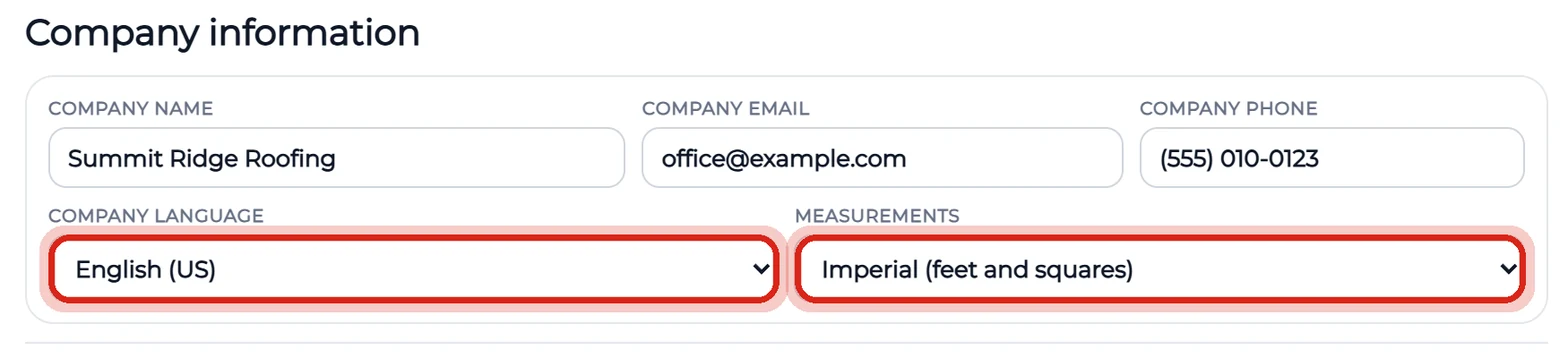
Changes apply to reports you order from now on. Each report keeps the language and units it was ordered with.
Company language
Your company language sets the language of your reports and your workspace. Choose from:
- English (US)
- English (UK)
- Português (Brasil)
- Español (España)
- Français
- Italiano
- Ελληνικά
- Deutsch
- Dansk
- Polski
- Čeština
- Nederlands
- Norsk (bokmål)
- Svenska
- Lietuvių
- Suomi
- 日本語
English (UK) also uses UK spelling in reports, such as colour, metre and storey.
Measurements
| Option | Reports show |
|---|---|
| Imperial (feet and squares) | Feet, square feet and roofing squares |
| Metric (metres and square metres) | Metres and square metres, with millimetres and litres where needed |
Roof pitch
- Click the gear icon at the bottom of the left sidebar.
- Choose Reports.
- Under Units, choose Rise over 12 (6/12) or Degrees (26.6°).
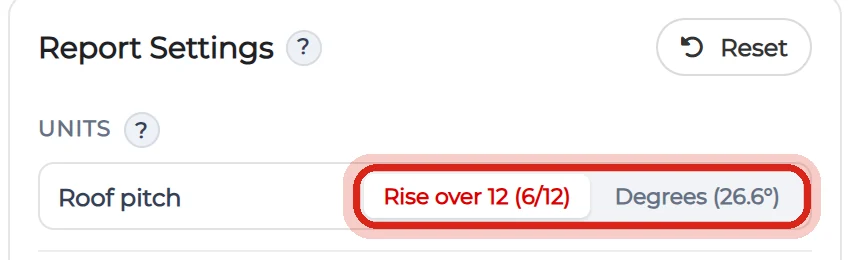
By default, metric companies see degrees and imperial companies see rise over 12.
Questions
Will changing units convert my old reports?
No. Each report keeps the units it was ordered with. New orders use your new settings.
Where did the roof pitch setting go?
Roof pitch is now under the gear icon, then Reports, in the Units section.